


LDR (Light Dependent Resistor) Exercise | ACE-Lab LDR (Light Dependent Resistor)
This exercise shows how to read an analogue light signal from an LDR, scale the 10-bit Arduino input range to an 8-bit PWM output range, and use the measured light level to control LED brightness. It then extends the model by adding a MATLAB Function block to create threshold-based logic.
1. Learning Outcomes
After completing this section, learners should be able to map an analogue input reading from an LDR to a suitable range for PWM-based LED brightness control, and use a MATLAB Function block to implement threshold-based on/off control logic from measured LDR values.
Core OutcomesMap analogue sensor data to PWM outputScale an LDR-derived ADC reading into the range required for PWM duty cycle control.
Use MATLAB Function logic in a Simulink modelImplement a simple decision-making block that switches behaviour based on measured light level.
2. Requirements
The exercise has the following primary requirements:
Specification1Implement a correct LDR voltage divider circuit and connect the analogue output to Arduino input A0.
2Acquire the LDR voltage using the Arduino 10-bit ADC, producing values in the range 0–1023.
3Scale the ADC output from 0–1023 to the 0–255 range required for PWM duty cycle control.
4Generate a PWM signal on pin 9 to control LED brightness based on measured light intensity.
3. Hardware Set-Up
This exercise involves connecting an LED to a PWM Arduino output pin and controlling its brightness using the analogue reading from the LDR sensor. The LDR is used in a voltage divider arrangement so that changes in light level can be measured at Arduino input A0.
HardwareRequired hardware:
- Arduino Uno board (supported by Simulink)
- USB cable Type A to Type B
- Breadboard
- LED
- 2 × 220 Ohm resistors
- LDR sensor
- 5 × male-to-male breadboard wires
Assembly guidance
One resistor is used for the LED output path and the second resistor is paired with the LDR to create a voltage divider. The junction between the LDR and resistor is connected to A0 so the Arduino can measure the light-dependent voltage.
1Place the LED on the breadboard and add a 220 Ohm resistor to its anode.
2Connect the LED cathode to GND and the free end of the resistor to pin 9.
3Place the LDR on the breadboard and connect one of its legs to 5 V.
4Add a 220 Ohm resistor from the second LDR leg to GND to form a voltage divider.
5Connect the junction between the LDR and resistor to A0 on the Arduino.

Hardware circuit diagram for the LDR exercise, showing the LED connected to PWM pin 9 and the LDR voltage-divider connection to analogue input A0. 4. Simulink Set-Up and LDR Testing
In this initial exercise, you will develop a Simulink model to control LED brightness using PWM based on the analogue reading from the LDR. As the measured LDR value increases, the brightness of the LED also increases.
Model Build AAdd an Analog Input block
Set the pin number to A0 and the sample time to 0.01. This reads the sensor voltage and outputs a value between 0 and 1023.
Insert a Gain block
Set the gain to 255/1023. This scales the ADC reading into the 0–255 range needed for PWM duty cycle control.
Connect to a PWM Output block
Change the PWM pin to 9. The PWM block uses the scaled 0–255 value to generate a proportional PWM signal on the Arduino.
Add two Display blocks
Connect one display to the analogue output and the other after the gain block so you can view both the raw sensor reading and the scaled PWM value in real time.
Deploy and test
Deploy the model to the Arduino, then adjust the light level incident on the LDR and observe the PWM output and LED brightness change.
Observe the mapping direction
Be aware that the LDR-to-LED mapping may operate in the opposite direction to the intended behaviour. The next task addresses this using a MATLAB Function block.
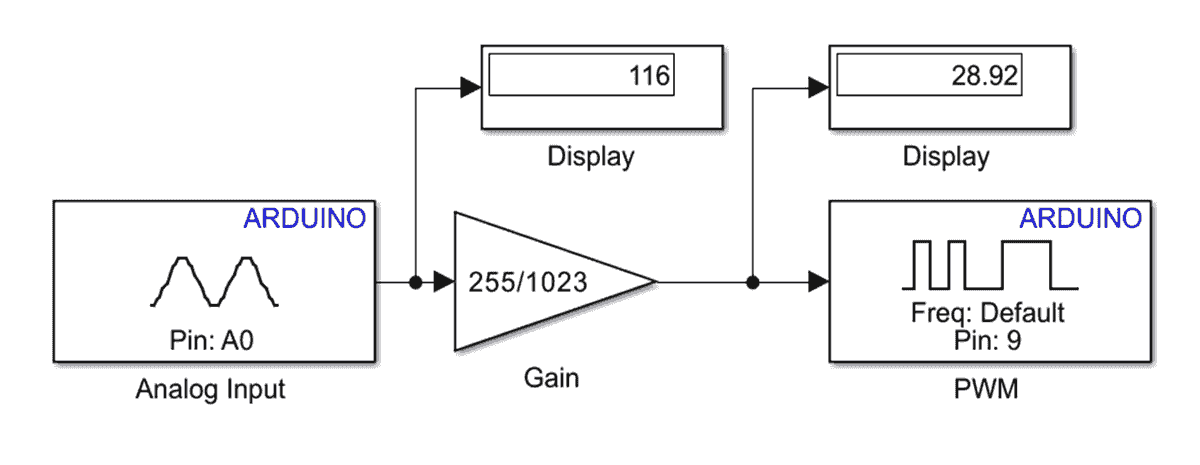
Initial Simulink model for analogue LDR sensing and PWM LED brightness control. 5. MATLAB Function and LDR Testing
The previous example is now updated to include a MATLAB Function block after the gain. Instead of sending the scaled value directly to the PWM output, the signal is passed through a small piece of code that decides whether the output should be on or off.
Model Build BAdd a MATLAB Function block
Place the MATLAB Function block between the gain and PWM blocks so that simple decision-making can be applied before the actuator output.
Replace the default function code
Use the threshold-based logic shown below so that the output passes through only when the input is on one side of the midpoint.
Deploy the updated model
Run the model on the Arduino and observe how the PWM output switches according to the LDR-derived input level.
MATLAB Function block code
function y = fcn(u) if u <= cast(255/2,'like',u) y = u; else y = cast(0,'like',u); endUnderstand the MATLAB Function block
- u is the input from the Gain block, scaled to 0–255.
- 255/2 represents the midpoint of the PWM range, 127.5.
- If the input is at or below the midpoint, the value is passed through.
- If the input is above the midpoint, the output is forced to zero.
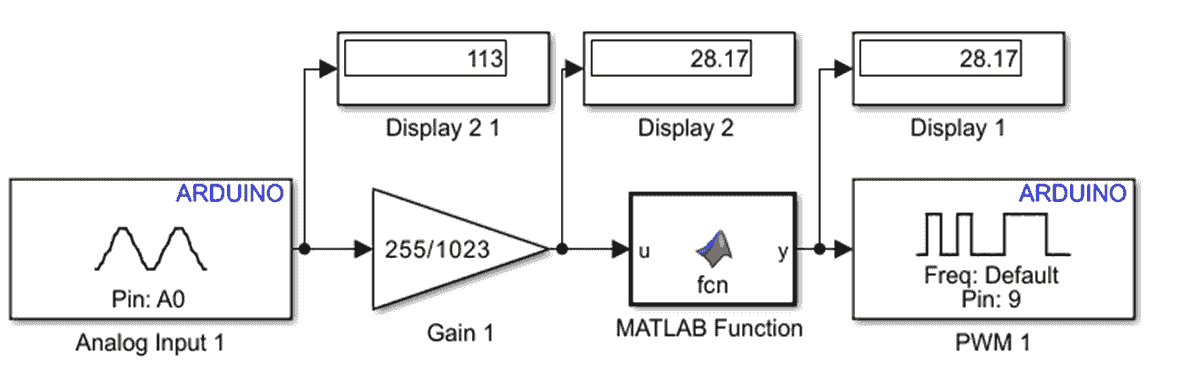
Updated Simulink model including a MATLAB Function block for threshold-based behaviour. 6. Additional Exercises
After completing the main tasks, extend the exercise by improving the signal mapping and exploring the effect of threshold choice under different lighting conditions.
Extension WorkExercise 1: Reverse the brightness behaviour
Modify the Gain or MATLAB Function logic so that the LED becomes brighter as ambient light decreases.
Exercise 2: Add a tunable threshold
Replace the fixed midpoint, 255/2, with a tunable threshold parameter and evaluate its effect on system behaviour.
Exercise 3: Record sensor readings
Record ADC readings under different lighting conditions, such as room light, shaded conditions, and a phone torch, and comment on the sensitivity of the arrangement.
7. Concluding Remarks
SummaryThis exercise demonstrates analogue sensing using a voltage divider, signal scaling for PWM actuation, and basic decision-making using a MATLAB Function block. It reinforces the complete signal chain from sensor to scaling, logic, and actuator.
You have explored both proportional control, where LED brightness changes continuously, and threshold-based control, where the output is switched according to a simple rule. These are two common embedded control strategies that build directly on the relationship between sensor data, model logic, and hardware behaviour.