


Simulink Code Generation
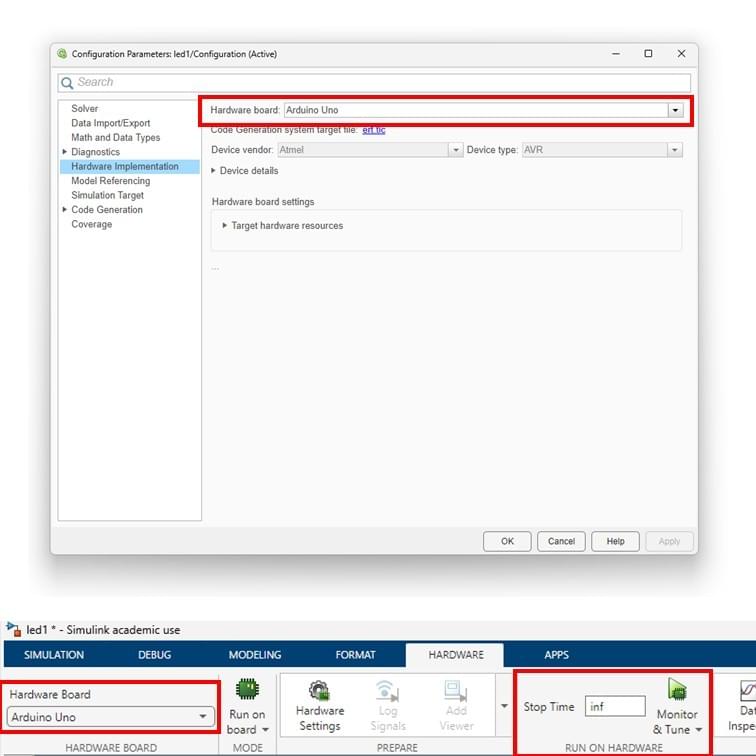
In this part of the exercise, you will configure and run a Simulink model on the supported Arduino Uno board. Using the following steps and as stown in the illustration, undertake the following:
- Connect the Arduino Uno to your computer using a USB cable.
- In your Simulink window, open Model Settings by selecting Modeling → Model Settings. This will bring up the Configuration Parameters dialog (1).
- From the left-hand menu, select Hardware Implementation. Under Hardware board, choose Arduino Uno from the list, then click Apply and OK (1). Note that other boards can be used beyond that of the Ardruino Uno.
- A new Hardware tab will now appear in Simulink. (Ensure your Simulink model is already developed before reaching this step.)
- Important: make sure MATLAB is operating/saving in a suitable working directory before clicking ‘Run’
- Confirm that the Arduino Uno is displayed (2), change the simulation stop time to inf (infinity) (3), and then click Monitor & Tune (4). The Simulink model will now be deployed to the Arduino, compiled into C code, and executed on the hardware.
⚠️If you encounter any errors, click the link below for troubleshooting
Key Properties to Review/Adjust
- Modeling settings
- Selected hardware board → Arduino Uno
- Simulation stop time → inf
- Monitor & Tune configuration
